

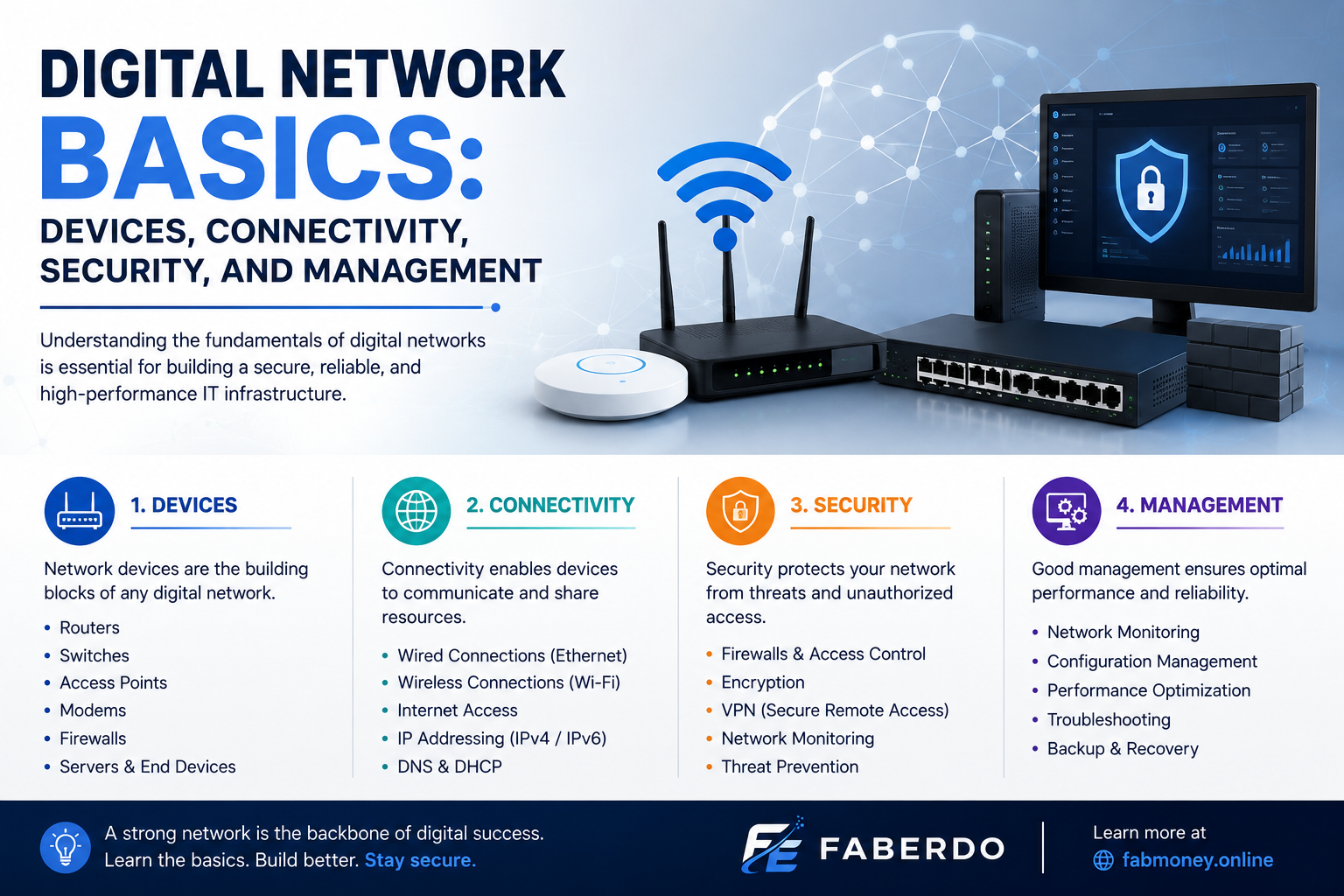
A digital network connects computers, smartphones, servers, printers, cameras, and other devices so they can communicate and share information. Networks are used everywhere, from homes and small offices to large companies, schools, data centers, and industrial environments.
Although networking can seem complicated at first, understanding a few basic concepts makes it much easier to understand how modern technology works.
This guide introduces the fundamentals of a digital network, including network devices, connectivity, security, management, common problems, and practical maintenance tips.
What Is a Digital Network?
A digital network is a group of connected devices that exchange digital information using wired or wireless communication technologies.
For example, a small office may connect:
- Desktop computers
- Laptops
- Smartphones
- Network printers
- Servers
- IP cameras
- Storage devices
- Wi-Fi access points
The network allows authorized devices to communicate with each other and access shared services.
A network can be as simple as a home Wi-Fi connection or as complex as the infrastructure connecting multiple business locations.
Why Are Digital Networks Important?
Digital networks provide the communication infrastructure behind many everyday activities.
Individuals use networks to:
- Browse websites
- Stream content
- Send messages
- Connect smart devices
- Share files
- Print documents
Businesses depend on networks for:
- Email and collaboration
- Cloud applications
- File sharing
- Business software
- Servers
- Printers
- Security cameras
- VoIP communication
- Internet access
Without reliable connectivity, many modern digital services would be difficult or impossible to use.
Essential Digital Network Devices
Understanding networking equipment is one of the first steps toward learning network technology.
1. Router
A router connects different networks and directs traffic between them.
In a home, the router commonly connects the local network to the internet.
In a business environment, routers can connect internal networks to external networks, branch offices, or internet services.
Some routers also include additional features such as firewall functions, VPN support, DHCP, and Wi-Fi.
2. Network Switch
A switch connects devices within a local network.
For example, an office switch can connect:
- Computers
- Printers
- Servers
- IP cameras
- Wireless access points
Managed switches provide additional control over network traffic and configuration.
Organizations may use VLANs on managed switches to separate different types of network traffic.
3. Wireless Access Point
A wireless access point allows devices to connect to the network using Wi-Fi.
A small home may only need one access point, while a large office or warehouse may require several.
Access-point placement is important because walls, distance, interference, and building materials can affect wireless performance.
4. Firewall
A firewall controls network traffic according to defined rules.
For example, it can allow required business traffic while blocking unauthorized connections.
Firewalls are an important part of network security, but they should be used together with other security controls.
5. Network Server
A server provides services to other computers and devices.
Servers can be used for:
- File storage
- Databases
- Applications
- Authentication
- Backups
- Websites
- Business systems
Some organizations operate physical servers, while others use cloud-based services.
6. Network Storage
Network-attached storage, commonly called NAS, provides centralized storage accessible through a network.
It can be useful for organizations that need shared files or centralized storage.
However, important data should not depend on a single storage device. Appropriate backup strategies are still necessary.
7. Network Cables
Wired networks commonly use Ethernet cables.
They are widely used for computers, switches, servers, printers, access points, and IP cameras.
Fiber-optic cables are also used for high-speed or longer-distance connections.
8. UPS
A UPS provides temporary battery power when normal electrical power is interrupted.
It can help protect important equipment such as:
- Servers
- Switches
- Routers
- Firewalls
- Storage systems
UPS capacity should be selected based on the equipment’s power requirements and the desired runtime.
Digital Network Connectivity
Connectivity refers to how devices communicate with each other and with external networks.
There are two major approaches: wired and wireless.
Wired Connectivity
Wired connections typically use Ethernet or fiber-optic cables.
Advantages include:
- Predictable connectivity
- Consistent performance
- Reduced exposure to wireless interference
- Useful for fixed equipment
Wired connections are particularly useful for servers, desktop computers, network storage, and IP cameras.
Wireless Connectivity
Wireless networks use technologies such as Wi-Fi.
Advantages include:
- Mobility
- Convenient installation
- Easy connection for mobile devices
- Reduced cabling for client devices
However, wireless performance can vary depending on signal strength, interference, access-point placement, and building construction.
Wired and Wireless Networks Can Work Together
Businesses do not necessarily have to choose between wired and wireless networking.
A typical office might use Ethernet for:
Servers → Switches → Desktop computers
While Wi-Fi provides connectivity for:
Access Points → Laptops → Smartphones → Tablets
Using both technologies can provide a practical balance between stability and mobility.
Understanding IP Addresses
An IP address identifies a network interface and allows network traffic to be directed to the appropriate destination.
Two major IP versions are commonly used:
- IPv4
- IPv6
An example of an IPv4 address is:
192.168.1.25
Devices can receive IP addresses automatically using DHCP or receive manually configured addresses when appropriate.
Understanding IP addressing is an important skill for anyone working with network infrastructure.
What Is DHCP?
DHCP stands for Dynamic Host Configuration Protocol.
It automatically provides network configuration information to devices.
This may include:
- IP address
- Subnet information
- Default gateway
- DNS server
For example, when a laptop connects to a Wi-Fi network, DHCP can automatically provide the information required for the laptop to communicate.
Without DHCP, administrators would have to configure many network devices manually.
What Is DNS?
DNS stands for Domain Name System.
It helps translate domain names into IP addresses.
For users, this means they can access services using recognizable domain names rather than having to remember numerical addresses.
DNS is an essential part of modern internet and network communication.
Digital Network Security
Connectivity also creates security responsibilities.
A secure digital network should use multiple layers of protection.
Strong Passwords
Network equipment and administrative accounts should use strong, unique passwords.
Default administrator credentials should be changed before equipment is placed into normal operation.
Multi-Factor Authentication
Where supported, multi-factor authentication provides an additional verification step beyond a password.
It is particularly useful for administrative accounts and remote access.
Regular Updates
Network equipment should be maintained with appropriate firmware and software updates.
This includes:
- Routers
- Firewalls
- Switches
- Access points
- Servers
- Computers
- Network storage
Updates can address bugs and security vulnerabilities.
Network Segmentation
Network segmentation separates groups of devices or services.
For example, an organization may create separate networks for:
- Employees
- Guests
- Servers
- IP cameras
- Management systems
Segmentation can limit unnecessary communication between systems and improve access control.
Secure Wi-Fi
Wireless networks should use appropriate modern security settings.
Guest Wi-Fi should generally be separated from internal business resources.
Restrict Administrative Access
Administrative interfaces should only be accessible to authorized users.
Remote administration should be carefully controlled rather than unnecessarily exposed to the public internet.
Digital Network Management
Network management involves monitoring, maintaining, and improving the network.
Good management helps IT teams identify problems and understand how the infrastructure is performing.
Network Monitoring
Monitoring systems can track:
- Device availability
- Bandwidth usage
- Network performance
- Hardware status
- Connection problems
- Security alerts
For a business, monitoring can help identify problems before they cause extended disruption.
Network Documentation
Documentation is an important part of network management.
Maintain records of:
- Device names
- IP addresses
- Switch ports
- Cable connections
- Network diagrams
- Equipment locations
- Configuration changes
- Maintenance activities
When a problem occurs, accurate documentation can significantly reduce troubleshooting time.
Configuration Backups
Important network configurations should be backed up where the equipment and environment support it.
Configuration backups can make recovery easier after equipment failure, incorrect configuration changes, or replacement.
Backups should themselves be protected and periodically tested.
Common Digital Network Problems
Network problems can have many different causes.
Slow Network
A slow network may be caused by:
- High bandwidth usage
- Network congestion
- Faulty cables
- Poor Wi-Fi coverage
- Hardware limitations
- Configuration problems
- Internet service issues
It is important to identify the actual cause before replacing equipment.
Wi-Fi Dead Zones
A dead zone is an area where wireless coverage is weak or unavailable.
Possible solutions include:
- Repositioning an access point
- Adding another access point
- Improving antenna placement
- Reducing interference
- Using Ethernet where practical
Devices Cannot Connect
If a device cannot connect to the network, check:
- Cable or Wi-Fi connection
- Network adapter
- IP configuration
- DHCP availability
- Authentication
- Switch or access-point status
- Firewall rules
Testing systematically can help isolate the problem.
Internet Is Unavailable
If multiple devices lose internet access at the same time, the issue may be related to:
- Router
- Firewall
- Internet connection
- DNS
- ISP service
- Power
Checking whether local devices can still communicate can help determine whether the problem is internal or external.
How to Build a Basic Digital Network
A successful network starts with planning.
Step 1: List the Devices
Identify everything that needs connectivity.
For example:
- 20 computers
- 3 printers
- 8 IP cameras
- 2 servers
- 3 access points
Step 2: Determine Requirements
Consider:
- Number of users
- Number of devices
- Internet speed requirements
- Wi-Fi coverage
- Security requirements
- Storage needs
- Future growth
Step 3: Create a Network Diagram
A simple network might look like:
Internet → Firewall/Router → Switch → Computers / Servers / Printers
Wireless access points can connect to the switch.
Step 4: Install the Equipment
Install equipment in suitable locations with adequate ventilation and appropriate power protection.
Avoid placing sensitive networking equipment where excessive heat, moisture, dust, or other environmental conditions could damage it.
Step 5: Configure the Network
Configuration may include:
- IP addressing
- DHCP
- DNS
- VLANs
- Firewall rules
- Wi-Fi security
- User access
Step 6: Test the Network
Test:
- Internet access
- Local connectivity
- Wi-Fi coverage
- Printing
- Server access
- IP cameras
- Security restrictions
Step 7: Document the Final Configuration
Record the final network design and important configuration details.
This documentation becomes valuable for future maintenance and troubleshooting.
Digital Network Maintenance
A network requires ongoing maintenance.
Regular Checks
Check important devices for:
- Connectivity
- Hardware warnings
- Power problems
- Unexpected alerts
- Availability
Monthly Maintenance
A monthly maintenance routine can include:
- Inspecting network equipment
- Checking firmware updates
- Reviewing network performance
- Checking UPS condition
- Inspecting cables
- Reviewing backups
- Checking user access
Periodic Security Review
Review:
- Administrator accounts
- Firewall rules
- Wi-Fi security
- Remote access
- Network segmentation
- Unused devices
- Software and firmware versions
The appropriate maintenance schedule depends on the organization’s size, infrastructure, and risk profile.
Benefits of a Well-Managed Digital Network
A properly planned network can provide several benefits.
Better Resource Sharing
Users can share printers, files, applications, storage, and other resources.
Improved Communication
Reliable connectivity supports email, messaging, video conferencing, and collaboration platforms.
Easier IT Management
Centralized network infrastructure can make it easier to monitor and manage connected devices.
Scalability
A well-designed network can be expanded as an organization adds employees, devices, or services.
Better Security Control
Segmentation, authentication, firewalls, monitoring, and access controls can create multiple layers of protection.
Challenges of Digital Networks
Digital networks also have limitations.
Cost
Equipment, cabling, installation, security tools, software, and maintenance can require a significant investment depending on the environment.
Complexity
Larger networks can become complicated and may require experienced IT personnel.
Maintenance
Network devices need updates, monitoring, configuration management, and periodic replacement.
Security
Poor configurations and outdated devices can increase security risks.
For this reason, organizations should regularly review their network infrastructure and adapt it to changing requirements.
Practical Digital Network Tips
If you are learning networking or managing an existing network, keep these principles in mind:
- Plan before installing equipment.
- Use appropriate equipment for the environment.
- Document IP addresses and network connections.
- Keep firmware and software updated.
- Use strong administrative credentials.
- Separate guest and internal networks when appropriate.
- Monitor important network devices.
- Protect critical infrastructure from power problems.
- Maintain configuration and data backups.
- Review security settings regularly.
- Test network performance when troubleshooting.
- Plan for future growth.
Frequently Asked Questions
What is a digital network?
A digital network is a system that connects digital devices so they can communicate, exchange information, and share resources.
What are the main devices in a network?
Common devices include routers, switches, firewalls, wireless access points, servers, network storage systems, and connected computers or other endpoints.
Is Wi-Fi a digital network?
Wi-Fi is a wireless networking technology. It can be used as part of a larger digital network that includes routers, switches, servers, cables, and other equipment.
What is the difference between a router and a switch?
A router connects different networks and directs traffic between them. A switch primarily connects devices within a local network.
How can I improve digital network security?
Use strong passwords, multi-factor authentication where available, appropriate firewall rules, secure Wi-Fi, regular updates, network segmentation, restricted administrative access, monitoring, and reliable backups.
Conclusion
Understanding digital network basics provides a strong foundation for anyone interested in technology, IT support, or network administration.
A modern network consists of many components, including routers, switches, firewalls, access points, cables, servers, and connected devices. These components work together to provide connectivity and access to digital services.
However, building a network is only the beginning. Regular maintenance, monitoring, documentation, security, and appropriate planning are essential for keeping network infrastructure reliable.
Whether you are managing a home network or supporting a business, learning the fundamentals of devices, connectivity, security, and management will help you troubleshoot problems more effectively and make better technology decisions.